
Configuring service accounts
To enable Foldr to function correctly, search the directory service and also provide more advanced capabilities such as password change control and file sharing, the Foldr administrator must provide the system with domain based service accounts. Multiple service accounts can be configured within Appliance >> Service Accounts.
It is recommended that you create accounts on your network specifically for this task, rather than use existing accounts. These accounts should ideally:
- Have a complex password configured
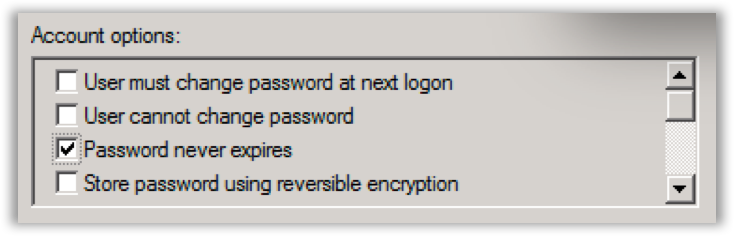
- Have the ‘password never expires’ flag enabled.
- Have the minimum permissions required to enable correct functionality.
- Be restricted from logging onto domain computers. This can be done centrally via Group Policy using the ‘Deny Logon Locally’ option under Computer Configuration\Windows Settings\Security Settings\Local Policies\User Rights Assignment\
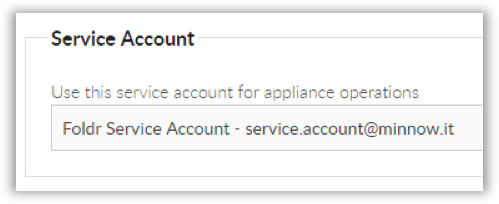
Main Service Account (Appliance Operations):
Once a service account has been created, the main system service account can be configured within General >> Configuration. Each configured share service account can be set at the bottom of the Share Configuration screen (within Shares >> Add New Share / Edit)
The main system service account is used by Foldr to Search the domain and also to control password changes for users, if this option is enabled. A standard account that is solely a member of ‘Domain Users’ has sufficient privileges to perform these actions.
Service accounts for sharing features
When sharing is enabled on a share. Internal Share with Others, Public Links, or Secure Links. Foldr’s sharing engine uses the share’s service account in the background to read (and, for Hand-In / Manage / upload-capable links, write) on behalf of recipients. That’s how a recipient can access content from a location they wouldn’t otherwise have permission to read, like another user’s home folder.
A few rules apply:
- SMB shares need a service account configured on the share’s Access tab.
- Read permission on the share, its files, and its sub-folders is required.
- Read + write is required if any sharing permission can write back: Hand-In, Manage, Upload, or external uploads via Public / Secure Links.
- Username format on Active Directory. Use the UPN form (
[email protected]). notDOMAIN\username. TheDOMAIN\form will not work for sharing. - Cloud storage shares (OneDrive, SharePoint, Google Drive, Dropbox) must not have a service account selected for sharing. Cloud connectors authenticate per-user via their own integration; setting a service account on the share’s Access tab will break sharing for that connector.
- “Use service account for all access” is a separate toggle. It makes every user access the share via the service account regardless of who’s signed in. That’s not required for sharing to work; only enable it if you specifically want to bypass per-user backend ACLs.
For the per-share NTFS permission requirements that the service account itself needs (Hand-Out, Hand-In, Manage), see Presenting Storage to Users → NTFS permission requirements.
Testing Authentication
Now that the appliance has been configured to authenticate against Active Directory (or other LDAP service) and a service account has been created / selected, you can test authentication using the ‘Test Settings’ tab found within General >> Test Settings.
Enter a domain username and password (ideally with a home folder configured) and click the Test Settings button. If Foldr is able to successfully authenticate the user and connect to the home folder, the following dialog will be displayed:
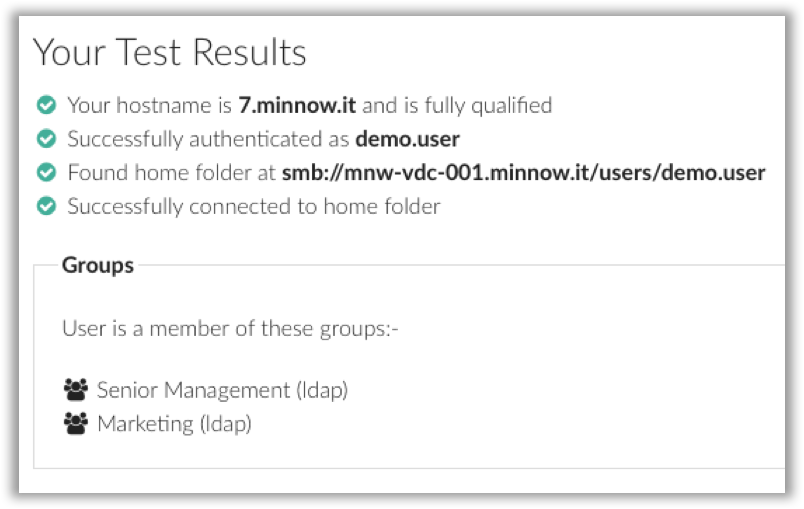
If there is an issue with any step in this process it will be highlighted by the test procedure.