
Enabling the Finder extension on macOS
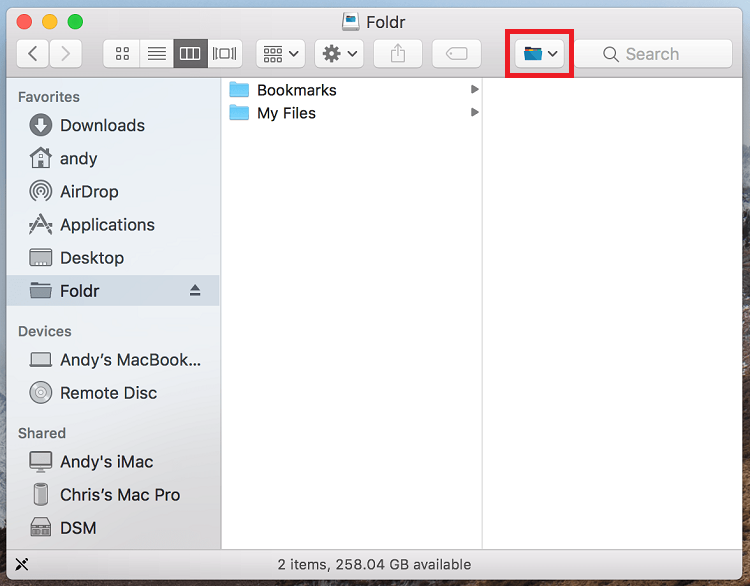
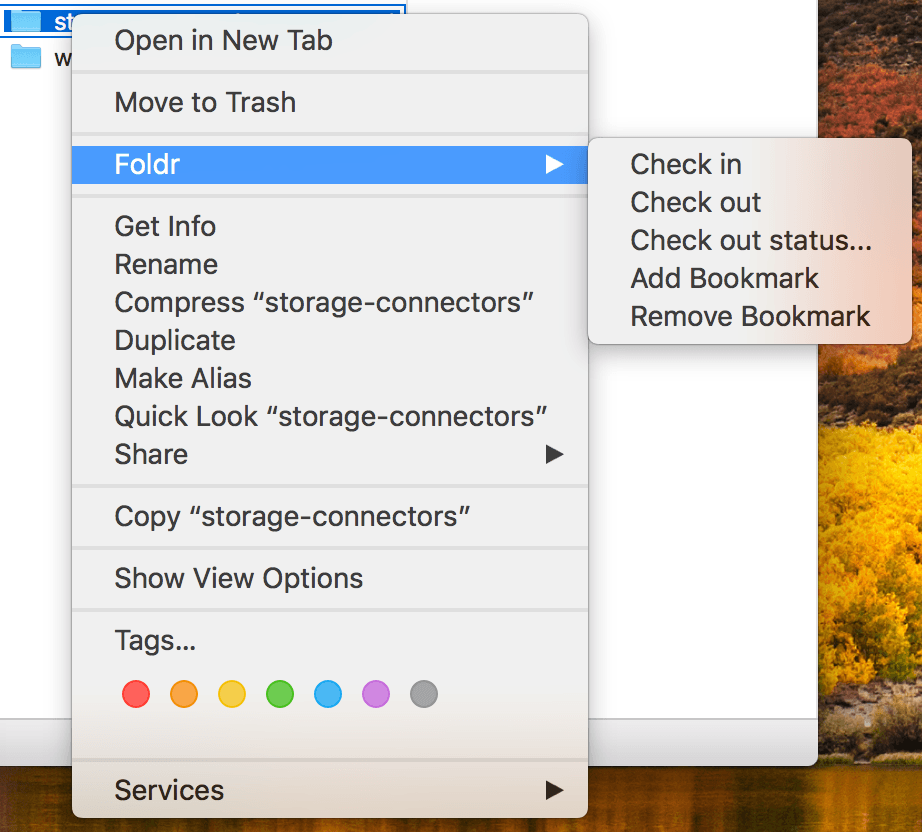
The Foldr macOS app installs a Finder extension alongside the main app. Once enabled, it adds a Foldr toolbar button to Finder windows showing the Foldr drive, plus a Foldr context menu when right-clicking files and folders inside the drive. The extension is installed automatically but isn’t active until you enable it.
Prerequisites
The Foldr macOS app installed and signed in. If you haven’t yet, see Foldr app for macOS.
Enabling the extension
-
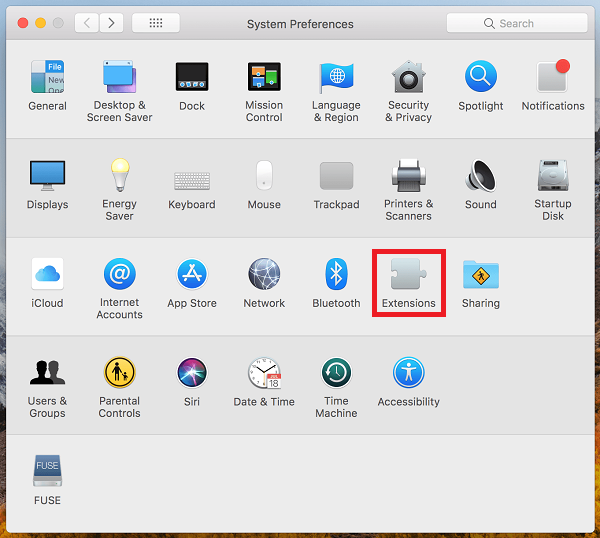
Open System Settings on macOS Ventura and later, or System Preferences on Monterey and earlier.
-
Go to Privacy & Security → Extensions → Added Extensions. (On older macOS the path is just Extensions in the main pane.)
-
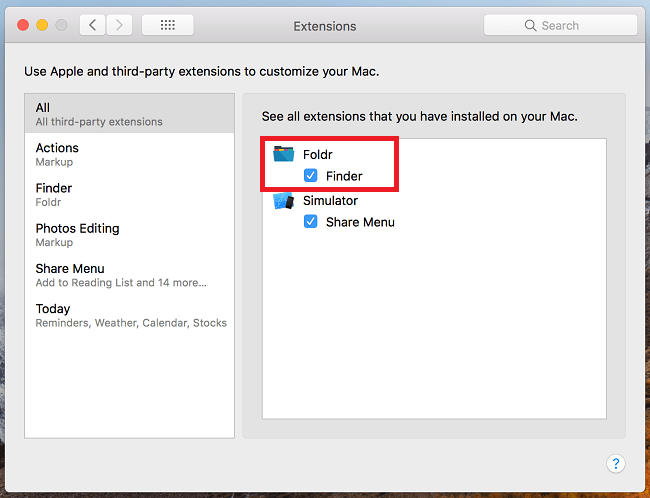
Tick the Foldr entry under Finder Extensions.
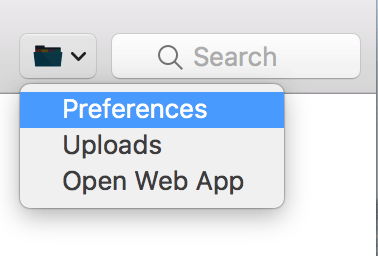
The next time you sign into the Foldr app, the toolbar button appears in Finder windows showing the Foldr drive, with quick access to Preferences, View Uploads, and a link to the web app.
What the context menu offers
Right-click any file or folder inside the Foldr drive to see the Foldr context menu. Options include Bookmark, Check out / Check in (when enabled on the share), and quick share / public-link actions. The menu grows as Foldr’s feature set evolves; what you see depends on your Foldr version and the per-share toggles your administrator has enabled.
Related articles
- Foldr app for macOS: the umbrella article for macOS app deployment.
- Approving the Foldr macOS system extension via MDM: the System Extension is a separate macOS component from the Finder extension. The System Extension gates the drive mount itself; the Finder extension covers the in-Finder UI on top.