
Search. Indexing cloud storage with delta queries
There are two ways to give users search across cloud storage in Foldr:
- The cloud provider’s own search API. Very little setup. The provider returns the results. Complex Foldr-side query features aren’t available.
- Foldr’s own search index. More setup, but it lets you use the full query builder and combines with other Foldr features. Captur, MaSH, custom fields, OCR, and so on.
When using option 2, Foldr can optionally use delta queries to track changes. Without them, every crawl has to re-check each file against the index to see whether it’s been added or modified. With them, the cloud provider tells Foldr what changed since the last baseline, and crawls run much faster.
Where delta queries are available
| Storage | Delta queries |
|---|---|
OneDrive (%onedrive%) | ✅ |
SharePoint Online (%sharepoint%) | ✅ |
Google Drive. Personal (%gdrive%) | ✅ |
| Google Shared Drives (formerly Team Drives) | ❌ |
Teams (%teams% / %teamsedu%) | ❌ |
Notes:
- Teams. The global Teams adapters can’t use delta queries. If you want delta-query indexing for a specific Team, configure it in Foldr using the SharePoint URL of the Team site (
%sharepoint%(tenant.sharepoint.com/sites/...)) instead. - Google Shared Drives. These use a different adapter that doesn’t expose delta cursors. Personal Google Drive (
%gdrive%) does.
Requirements
- Foldr search enabled and configured.
- A full crawl performed on the share to establish a baseline. (You’ll do this in the steps below if you haven’t already.)
- The share is using option 2 above. Delta queries don’t apply when search is being delegated to the cloud provider’s own API.
Enable delta queries on a share
The procedure is the same regardless of provider. Once the share is configured in Foldr Settings > Files & Storage, the Search & Data tab is identical for OneDrive, SharePoint, and Google Drive.
-
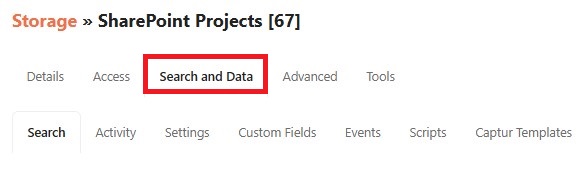
Open the share in Foldr Settings > Files & Storage and click the Search & Data tab.
-
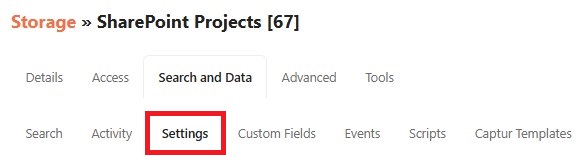
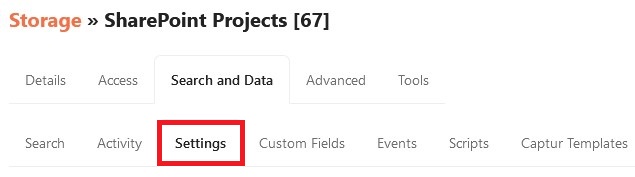
Click the Settings sub-tab.
-
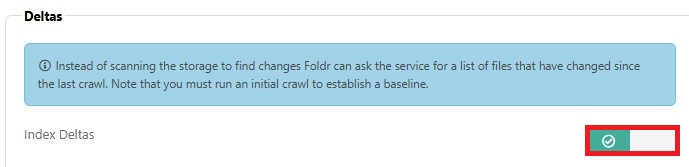
Scroll down and enable the Index Deltas toggle.
-
Click Save Changes.
Establish a baseline
Delta queries report changes since a known point, so the share needs a baseline crawl before deltas can be used. If the share is new, the first crawl is the baseline. If it’s already indexed, do a forced full reindex once after enabling deltas.
-
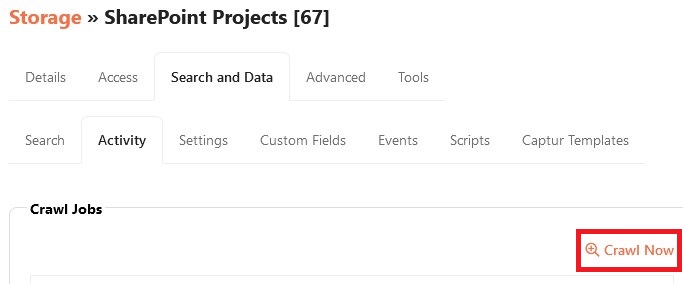
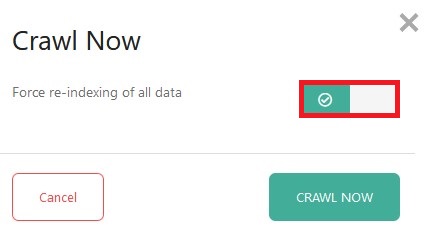
On the share’s Search & Data tab, click the Activity sub-tab and click Crawl Now.
-
Enable Force re-indexing of all data.
-
Click Crawl Now. Foldr runs a full reindex and stores the delta cursor.
After the baseline is in place, every subsequent crawl on this share. Manual or scheduled. Will use deltas automatically.
Configure a schedule
You’ll usually want crawls to run on a schedule rather than manually. Delta-driven crawls are cheap, so you can run them frequently.
-
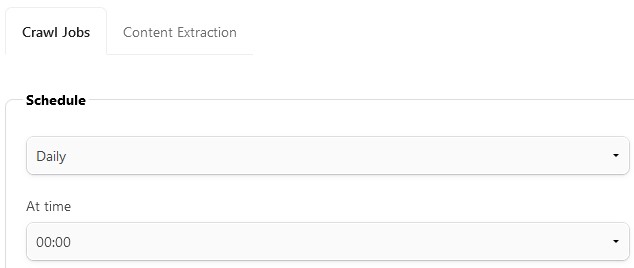
On the share’s Search & Data > Settings tab, find the Crawl Jobs > Schedule dropdown.
-
Pick Daily, Weekly, Monthly, or Cron.
Cron examples
For frequent runs (every few minutes / hourly / multiple times a day) use the Cron option:
| Schedule | Cron |
|---|---|
| Every 20 minutes | */20 * * * * |
| Every hour | 0 * * * * |
| Every day at 12pm | 0 12 * * * |
| Every day at 1:30pm, 3:30pm, 5:30pm | 30 13,15,17 * * * |
| Every Monday, Wednesday, Friday at 8pm | 0 20 * * 1,3,5 |
cron.help is a useful reference for working out custom schedules.