
Kerberos authentication for SMB shares
Introduction
By default, Foldr authenticates to backend SMB file servers using NTLM. It can be configured to use Kerberos instead, on a per-share basis. This is most useful in environments where IT administrators are disabling NTLM as part of a hardening initiative.
How Foldr authenticates with Kerberos
When a share has Kerberos enabled, Foldr selects one of three authentication modes automatically based on the share’s other settings and the signed-in user. You don’t pick the mode directly; you configure the inputs and Foldr does the rest.
| Mode | Selected when | Needs a vaulted user password? | Needs AD constrained delegation? |
|---|---|---|---|
| Service account (machine account) | Share has both Use Kerberos for authentication and Use machine account as service account enabled | No | No |
| S4U2Proxy delegation | Share has Use Kerberos for authentication enabled and the user has no vaulted password | No | Yes |
| Password-based | Share has Use Kerberos for authentication enabled and the user has a vaulted password | Yes | No |
A short summary of each:
Service account (machine account). Foldr authenticates to the file server as itself, using the computer-account credentials in /opt/minnow/foldr/system/krb5/http.keytab. All access is performed as that account, regardless of which Foldr user is making the request. Typically combined with Use service account for all access and full ACL support so that per-user permissions are still enforced by reading the file system’s ACLs. Equivalent to the existing service-account model, but with no shared password to manage.
S4U2Proxy delegation. Foldr uses its computer account to request a Kerberos service ticket on behalf of the signed-in user, then presents that ticket to the file server. The file server sees the request as coming from the user, so per-user NTFS permissions apply directly. Removes the need to vault user passwords. Requires constrained delegation to be configured on the Foldr computer object in Active Directory (covered below).
Password-based. Standard Kerberos: Foldr uses the user’s vaulted password to obtain a TGT and a service ticket, and presents that to the file server. No special AD configuration needed beyond the realm being reachable.
Prerequisites (all modes)
- The Kerberos realm / Active Directory domain is configured in Foldr Settings > Single Sign On > Kerberos. Kerberos SSO does not need to be enabled for this feature to work, only the realm settings.
- The Foldr server has a keytab at
/opt/minnow/foldr/system/krb5/http.keytab. The simplest way to create one is thekrb5-enableconsole command, which runsmsktutilto register a computer object in AD and writes the keytab automatically. Alternatively, upload an existing keytab in Foldr Settings > Single Sign On > Kerberos. - Share paths use the file server’s hostname, either fully-qualified or short with a matching Search Domain configured in Appliance > Network. IP addresses do not work because Kerberos service tickets are bound to SPNs, which are name-based.
- The Foldr server’s clock is in sync with the domain controllers (within ~5 minutes). Time skew is the single most common cause of “ticket rejected” errors.
Enabling Kerberos on a share
1. Ensure the realm is configured in Foldr Settings > Single Sign On > Kerberos
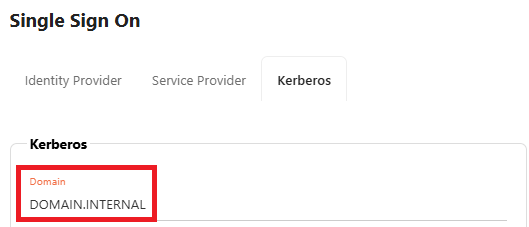
Click Save Changes.
2. If short / non-fully-qualified share paths are being used (Active Directory home folders, or shares configured in Files & Storage with a short host), ensure a suitable Search Domain is configured in Appliance > Network
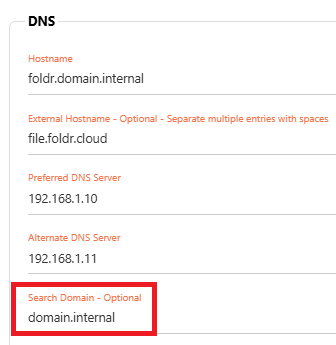
3. Ensure the SMB share is configured fully-qualified
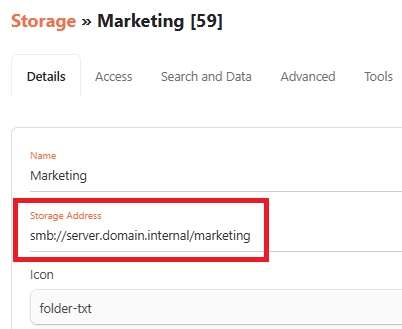
A non-fully-qualified path may be used if a Search Domain is configured. In that case the path looks like:
smb://server/marketing
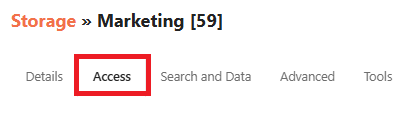
4. On the share’s Access tab in Foldr Settings > Files & Storage
5. Open the Advanced section and enable Use Kerberos for authentication

6. Optionally enable Use machine account as service account. This switches the share to the service-account mode (Foldr authenticates as itself, no per-user password and no constrained delegation needed). Typically combined with Use service account for all access and full ACL support enabled.
Click Save Changes.
The configuration is now complete. The Foldr server will authenticate against the SMB share using Kerberos instead of NTLM.
Configuring constrained delegation (S4U2Proxy)
This step is only required if you are using S4U2Proxy mode, i.e. you have Kerberos enabled on a share, are not using the machine-account mode, and the signed-in users do not have vaulted passwords.
In Active Directory, on a domain controller (or any machine with the AD admin tools installed):
- Open Active Directory Users and Computers.
- Locate the Foldr server’s computer object (the name
krb5-enableregistered, typically the appliance hostname). - Right-click and choose Properties, then the Delegation tab.
- Select Trust this computer for delegation to specified services only.
- Select Use Kerberos only.
- Click Add…, browse to each file server’s computer account, and choose the cifs service.
- Repeat for every file server that hosts a share where Foldr should authenticate via S4U2Proxy.
If you add a new file server to Foldr later, remember to extend this list, or that server will reject S4U2Proxy ticket requests.
A short way to check the configuration is in place: from any machine with setspn available, run
setspn -L <foldr-computer-name>and confirm that cifs/<file-server-fqdn> appears in the allowed-to-delegate-to list (visible in PowerShell via Get-ADComputer <foldr> -Properties msDS-AllowedToDelegateTo).
Verifying
The quickest functional check is to browse to a Kerberos-enabled share and confirm the file listing loads. If it does, authentication has succeeded somehow (Kerberos or, in some misconfigured edge cases, fallback to NTLM).
To confirm exactly which path was used, enable SMB request logging by setting app.integrations.smb.log-requests to true in Foldr Settings > General. The Foldr log will then include lines such as:
SMB auth: ... krb5_share=yes machine_account=yes ...(service-account mode)Krb5 machine account auth: principal=...(service-account mode confirmed)S4U2Proxy delegation: [email protected] target=cifs/[email protected] service=...(S4U2Proxy mode)SMB krb5: using password-based Krb5Auth (user has stored password)(password mode)
Disable the logging once you’ve confirmed the setup. SMB request logging is verbose and not intended for ongoing production use.
Troubleshooting
Clock skew too great. The Foldr server’s clock differs from the KDC by more than ~5 minutes. Sync the appliance time (NTP or a configured time source on Appliance > General) and retry.
Server not found in Kerberos database. The target file server doesn’t have a CIFS SPN registered, or the share is configured with a short hostname with no Search Domain to expand it. Check that the file server’s computer object has cifs/<fqdn> in its servicePrincipalName attribute, and that the Foldr share path uses a name (not an IP).
KDC has no support for encryption type. The Foldr keytab uses encryption types your domain controllers no longer accept (or vice versa). Re-create the keytab with krb5-enable, which negotiates current types with the DC.
S4U2Proxy: no valid TGT / cannot delegate. The Foldr computer object is missing constrained delegation entries for the target file server’s CIFS service. See the section above.
Falling back to NTLM unexpectedly. Check the SMB request log lines. If you see Kerberos-related errors, those rows tell you which mode failed and why. If you see NTLM in use without the Kerberos toggle being enabled, double-check the share’s Advanced tab.