
Switching the web app to grid view
The Foldr web app has two file-list layouts: the default list view and a grid (gallery) view that shows larger icons and thumbnails. Grid view is the better fit for image-heavy folders, photography shares, and any browse-by-thumbnail workflow.
The grid view’s thumbnail quality follows the per-share thumbnail setting in Foldr Settings. If the share is set to medium or high quality, the grid view’s thumbnails are noticeably sharper than the same images shown in list view. See Enabling thumbnails for image and PDF files for the per-share configuration.
Switching to grid view
Open any share in My Files and click the layout-toggle button in the top-right of the file list.
The list switches to grid layout.
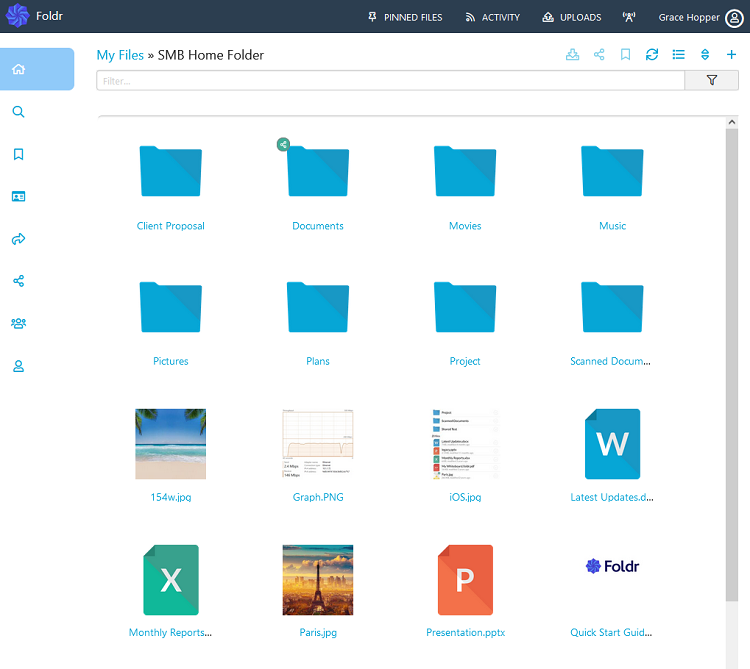
Switching back to list view
Click the same toggle button (now showing the list-view icon).
The list reverts.
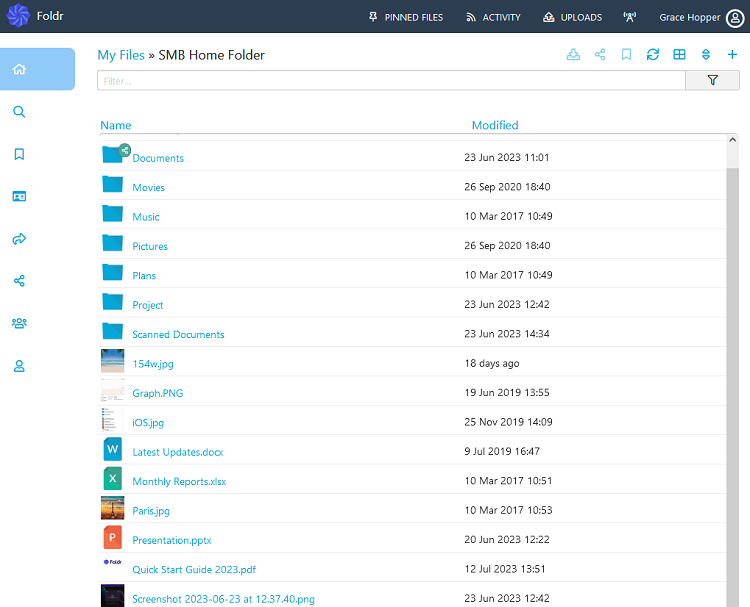
The choice is per-user and persists across sessions, so once you’ve switched a folder to grid view you stay in grid view on next visit.
Related articles
- Enabling thumbnails for image and PDF files: the per-share thumbnail configuration that grid view depends on.