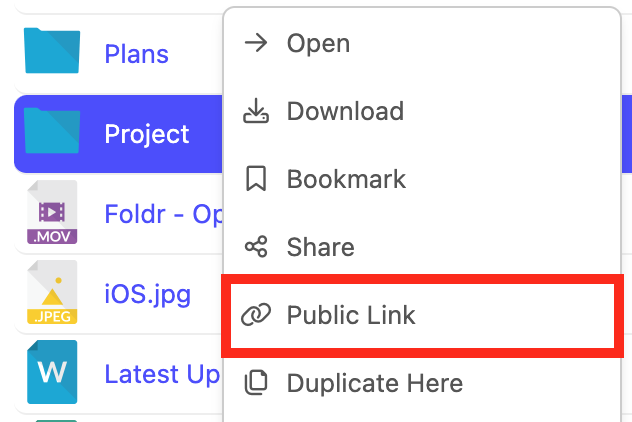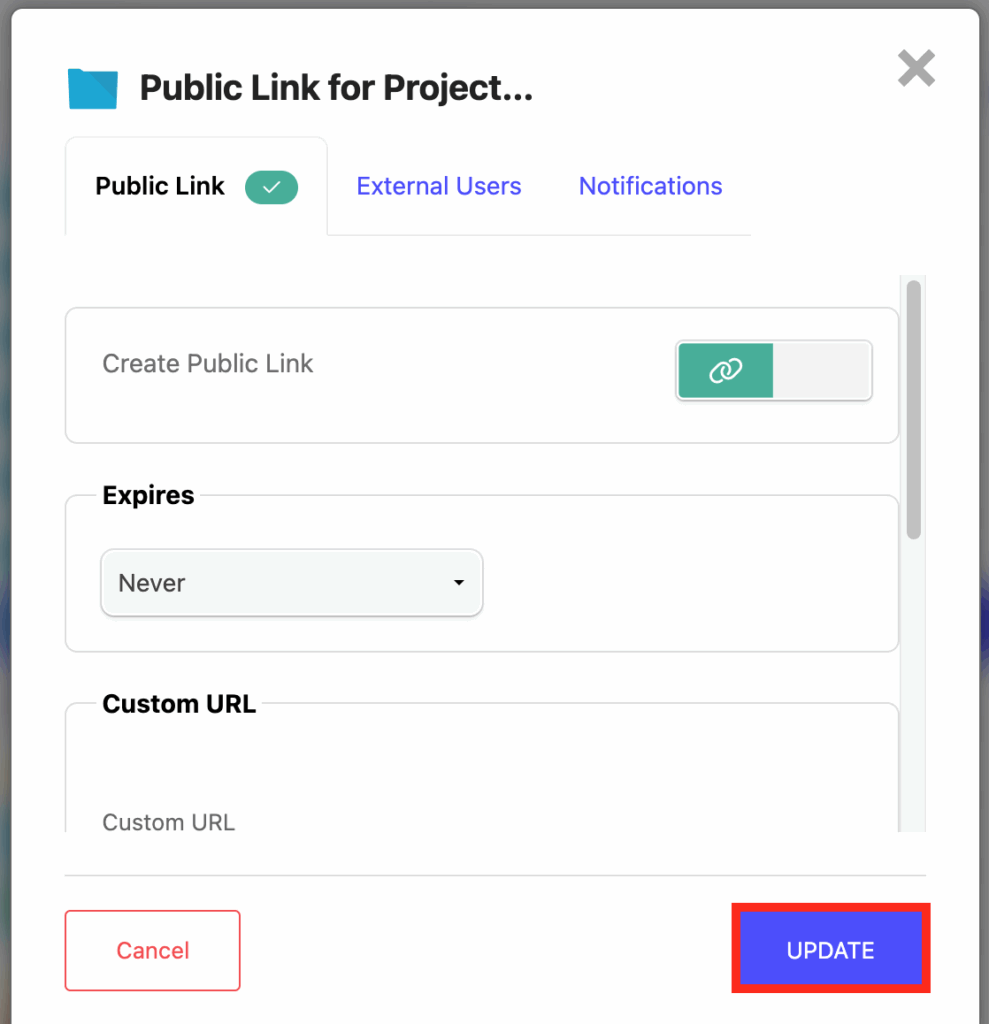
How to Enable Public Links for Users
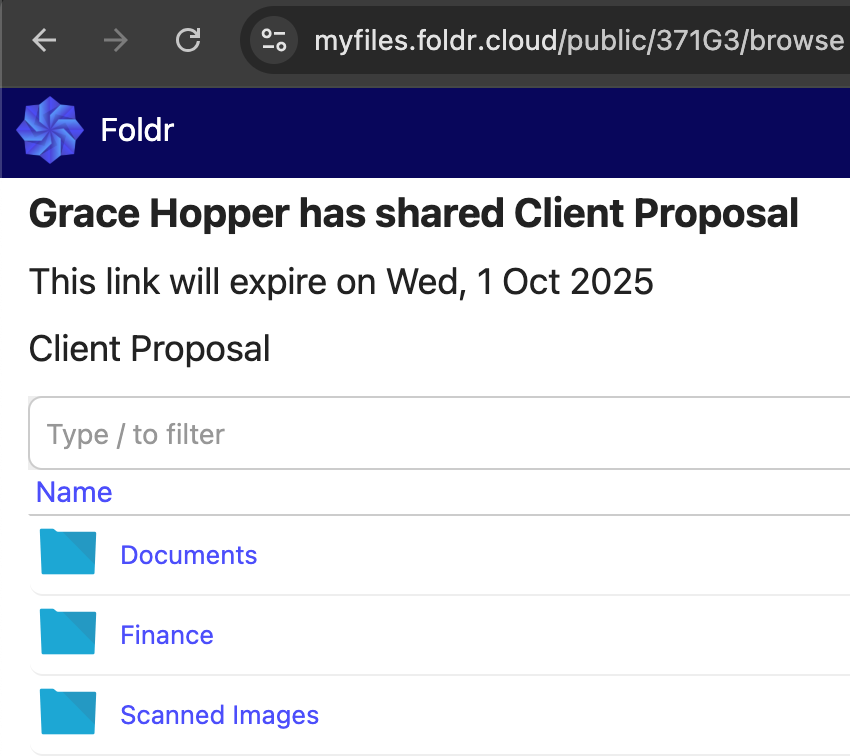
Foldr provides different sharing features to allow users to share files/folders securely with others either inside or outside of the organisation. Public links allow users to create URLs that point directly to folders or individual files. Public links can either require no authentication so users can access files immediately or they can be protected by a password.
Users can navigate through subfolders, if they exist and either download individual files or all files within a shared folder as a zip file.
Example public link:
All file sharing features are disabled by default and sharing features must be enabled for each storage type by an administrator within Foldr Settings > Files & Storage before they can be used. Enabling the sharing features are completely granular and these may be enabled for all users or only specific groups / individuals as required.
Service accounts
The sharing engine uses the share’s service account to read. And, for Hand-In / Manage / Upload, write. On behalf of recipients. Configure it on the share’s Access tab and make sure it has the necessary permissions on the backend file server. Cloud storage shares (OneDrive, SharePoint, Google Drive, Dropbox) must not have a service account selected for sharing.
For full requirements (NTFS permissions, UPN username format, the “use service account for all access” toggle), see Configuring service accounts.
Configuration Steps – Public Links
1. Log into Foldr Settings and navigate to Files & Storage.
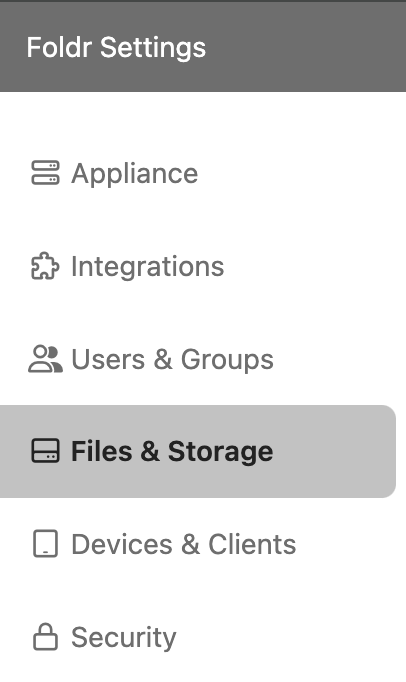
2. Edit the share and click the Access tab. Within in the Permissions section:
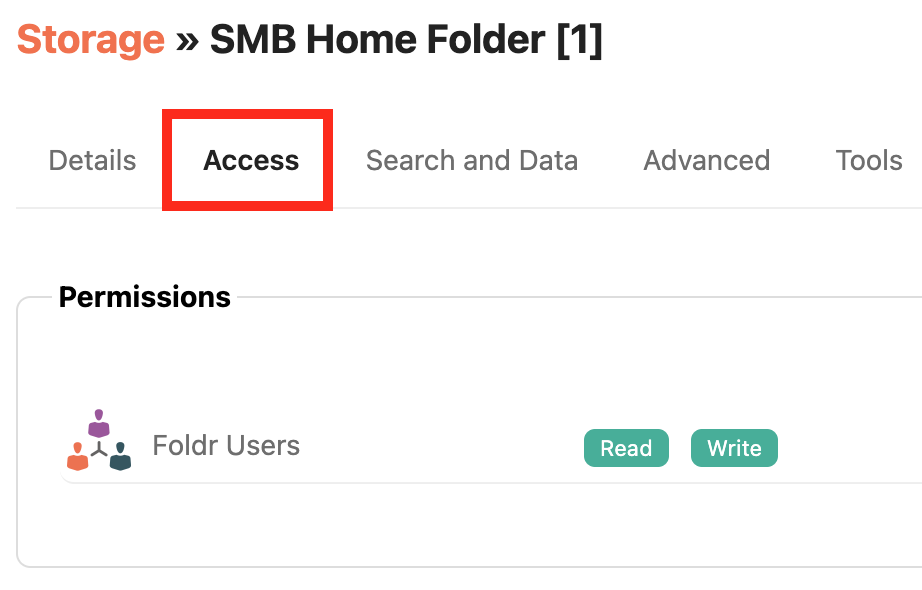
To enable sharing for EVERYONE (allow all users to create public links) with access to the share, edit the built-in Foldr Users group (double click). Alternatively click + Add User or Group and search for users or groups that require the sharing feature.
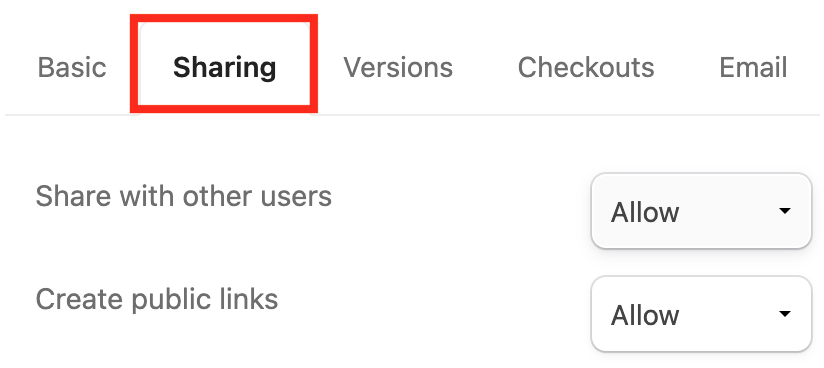
3. Click on the Sharing tab and ALLOW ‘Create Public Links‘. Note that ‘Share with other users‘ is also required and will be enabled automatically. Click Update.
4. Depending on the storage type (such as SMB shares) a suitable service account must now be selected (directly below Permissions) on the Access tab.
Note the service account must have at least READ permission to the SMB file server share and any files/sub-folders held on the share that you wish to share via public links. If the service account doesn’t have permission to access the files, then the public link will not be usable by the recipient.
NOTE – The service account for an Active Directory domain environment and storage type is SMB shares should have the username configured as the Active Directory UPN ([email protected]) and no other format such as DOMAIN\username.
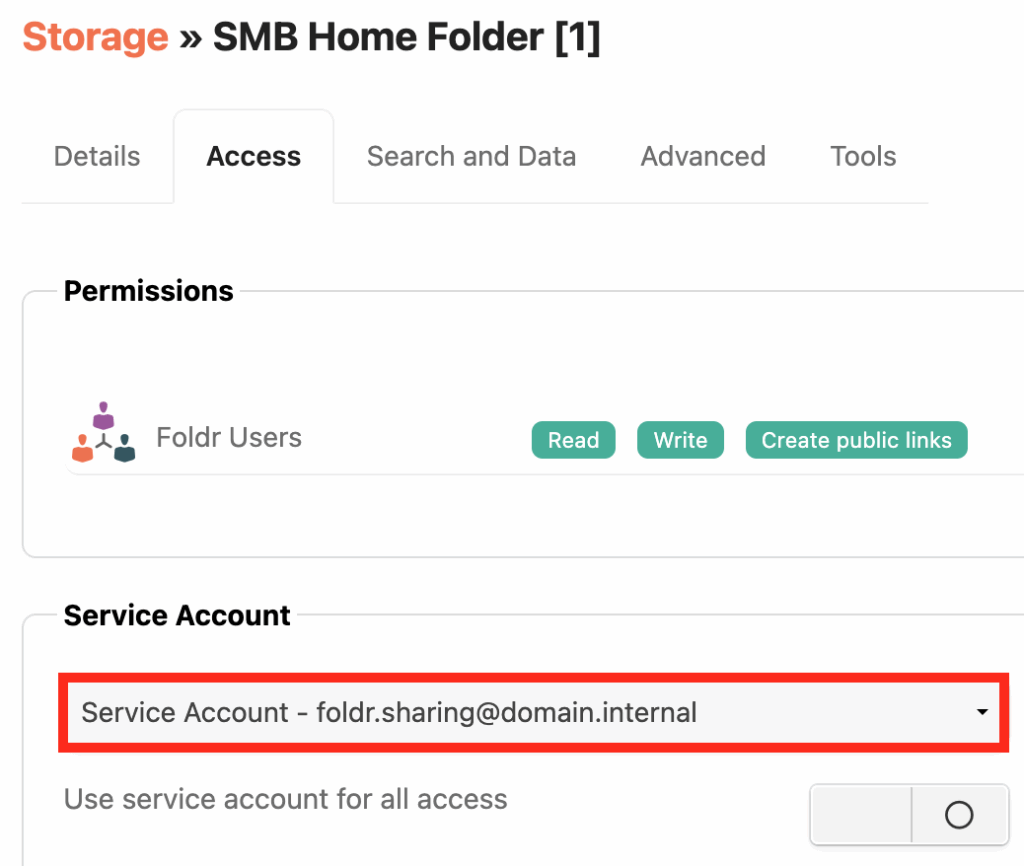
The toggle ‘Use service account for all access’ is not required for public links to function.
5. Click Save Changes (top right)
The configuration steps to enable users to create ‘Public Links’ is complete.
When the user next signs into Foldr they will be able to create public links from the share configured above in the web and mobile apps.
Public link policy controls
When granting the Create Public Links permission you can also constrain how the user creates links. Capping their lifetime and (optionally) forcing every link to expire on download. These constraints are stored on the same Sharing permission row as the Create Public Links allow flag, so they’re scoped to the user or group the row applies to.
Where the controls live. In the Sharing tab of the permission editor, the Create Public Links row exposes two extra fields when the permission is set to Allow:
- Max expiry (days). The longest a link created by this user/group can live. The user’s own expiry choice (e.g. “On date” 90 days from now) is silently capped to this value. Leave blank for no cap.
- Force expire on download. Every link this user/group creates uses the expire-on-download mode regardless of what they pick in the share dialog. Useful when policy says one-shot delivery only.
Behavioural notes:
- These fields appear only on the Create Public Links permission row. They don’t appear on Share, Create Secure Links, or Inbox rows. Those permissions don’t have lifetime knobs.
- Resolution is a single winning row rather than tightest-wins composition: a user with a direct grant uses that grant’s policy. If they have no direct grant, the first matching group grant wins. There’s no merging across rows. (This mirrors how password policy resolution works.)
- A blank Max expiry on the winning row means no cap, even if other rows the user inherits from would have applied a tighter limit.
How users see the constraint
When the user creates a public link in the web app, the expiry options reflect the policy:
- If Max expiry (days) is set, the “On date” picker greys out dates beyond the cap, and “Never” is hidden.
- If Force expire on download is set, the expiry control is locked to “On download” and can’t be changed.
A short note appears next to the locked control so the user knows the limit is set by an admin and isn’t something they can override.