
Microsoft Entra ID authentication
This article covers the self-hosted appliance flow, which uses a Microsoft client secret and a separate Entra ID licence key. If you’re on Foldr Cloud, see the Foldr Cloud version of this article instead — sign-in is a toggle on the same Entra app you already registered for Microsoft 365 storage, with no client secret and no separate licence.
Foldr can authenticate users natively against Microsoft Entra ID (formerly Azure AD), with Microsoft 365 storage integrating automatically once the user has signed in. This article walks through the Azure-side App Registration, the Foldr-side configuration, and the storage objects that follow. It also covers the limitations to be aware of before choosing this mode.
When to use Entra ID authentication
Entra ID authentication is the right fit for organisations that primarily use Microsoft 365 for identity and storage (OneDrive, SharePoint, Teams) and no longer have a traditional on-premise Active Directory.
When this mode is enabled, users are either redirected to Microsoft Online immediately to sign in, or enter their Microsoft 365 username on the Foldr sign-in screen and are then redirected to Microsoft Online for password and MFA. The latter pattern leaves room for both Entra ID users and Foldr-local users on the same server.
The Foldr Windows app (release 3.1.0 and later) supports automatic sign-in once the username is entered, provided the device’s Edge browser is already signed into Microsoft 365.
The Microsoft 365 authentication token Foldr receives at sign-in unlocks 365 storage (OneDrive, SharePoint, Teams) for that user automatically. Users do not link accounts; service accounts are not required for routine 365 access. Service accounts may still be used to surface storage that wouldn’t be available to the user under their own permissions.
If MFA is enabled on the user’s Microsoft 365 account, MFA is enforced at Foldr sign-in too.
Limitations
Entra ID authentication is not a drop-in replacement for traditional AD authentication. Choose carefully if any of the below matter:
- Foldr password features are not available. Password change, delegated reset, and self-service reset assume Foldr can write to the directory; with Entra ID, password management belongs to Microsoft.
- Kerberos SSO is not available. Kerberos requires AD; if you need Kerberos SSO into SMB shares, you need a traditional AD-backed setup.
- SMB shares need service accounts. Users authenticated via Entra ID don’t have an AD identity to present to SMB. To expose SMB to these users, configure each SMB share with a service account and the Use service account for all access toggle. Users then access the share with the service account’s permissions.
If you need users to access on-premise SMB shares and Microsoft 365 with their own identity, use a standard licence and integrate Microsoft 365 in the conventional way:
- Manual linking (recommended for OneDrive, SharePoint, and Teams)
- Automated linking (recommended where only OneDrive is being accessed)
You can still provide an Entra ID-flavoured sign-in experience for users with SSO with Entra on a standard (non-Entra-auth) setup.
Requirements
- An externally accessible Foldr server with a valid TLS certificate.
- Your Azure (Entra ID) Tenant ID. Foldr support uses this to issue the Entra ID licence key.
- An App Registration created in Azure (steps below).
Configure the App Registration in Azure
-
Sign into the Azure portal at https://portal.azure.com as an admin.
-
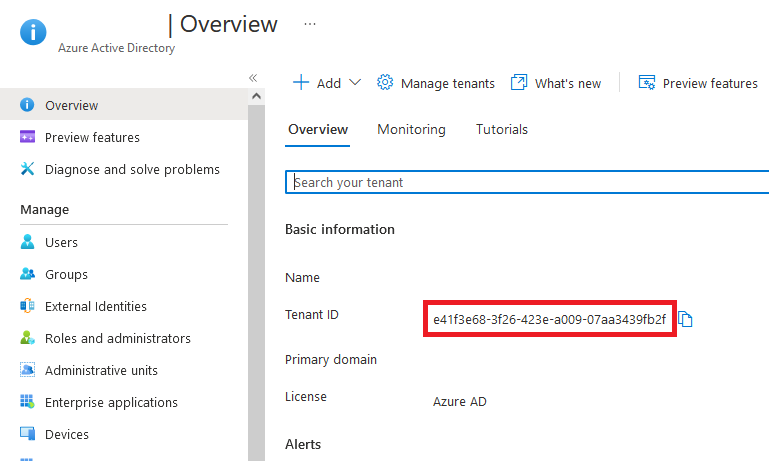
Open Entra ID → Overview and copy the Tenant ID. Send it to Foldr support; we’ll use it to mint your licence key.
-
Open App Registrations → + New Registration. Name the app something recognisable. Leave the supported account types on the default (this organisational directory only). Configure a Redirect URI of platform type Web with the URL:
https://<address-of-foldr>/services/microsoft/connectClick Register.
-
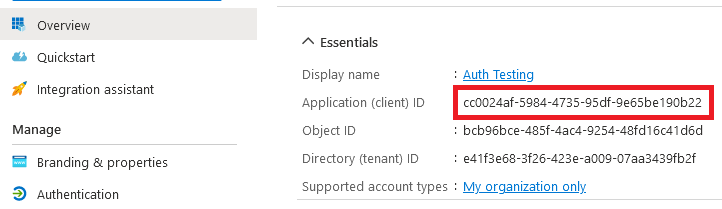
The Overview panel appears. Note the Application (client) ID value; you’ll need it shortly.
-
Click the Redirect URIs link in the Overview panel and add a second URI:
https://<address-of-foldr>/services/microsoft/signin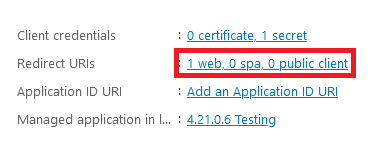
-
Open Manage → Certificates & secrets → + New Secret.
-
Give the secret a description, choose a sensible expiration lifetime, and click Add.
The secret value appears once. Copy the VALUE column, not the Secret ID column. You can’t retrieve the value later, but you can always create a new secret if needed.
-
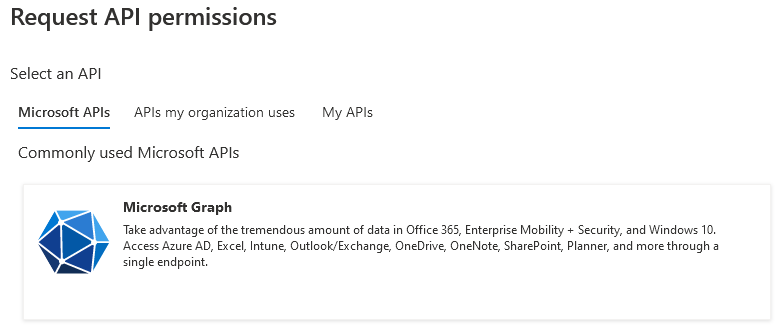
Open API Permissions → Add a permission → Microsoft Graph.
-
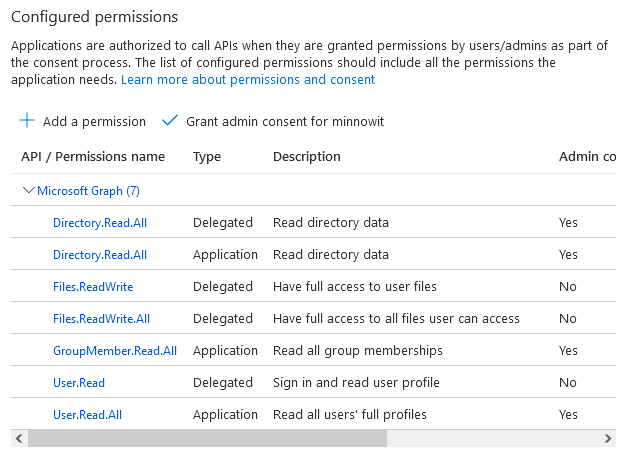
Click Delegated Permissions and select:
Sign-in basics:
Directory.Read.AllUser.Read
File operations:
Files.ReadWrite.AllSites.ReadWrite.AllSites.Manage.All(needed for SharePoint document libraries with content approval enabled)
Teams:
Channel.CreateChannelSettings.ReadWrite.All
Then click Application Permissions at the top and add:
Directory.Read.AllGroupMember.Read.AllUser.Read.All
Click Add Permissions.
-
The permission summary now lists the delegated and application permissions you’ve selected.
-
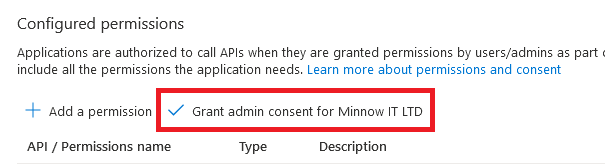
Click Grant admin consent for <organisation> and confirm.
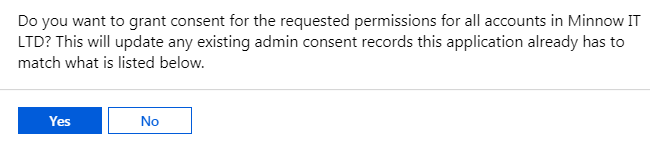
A success message appears.

Enable Entra ID in Foldr Settings
Apply the Entra ID licence key first, under Appliance → Status → General → Licence. Without it, the Entra ID toggle in Foldr Settings won’t activate.
-
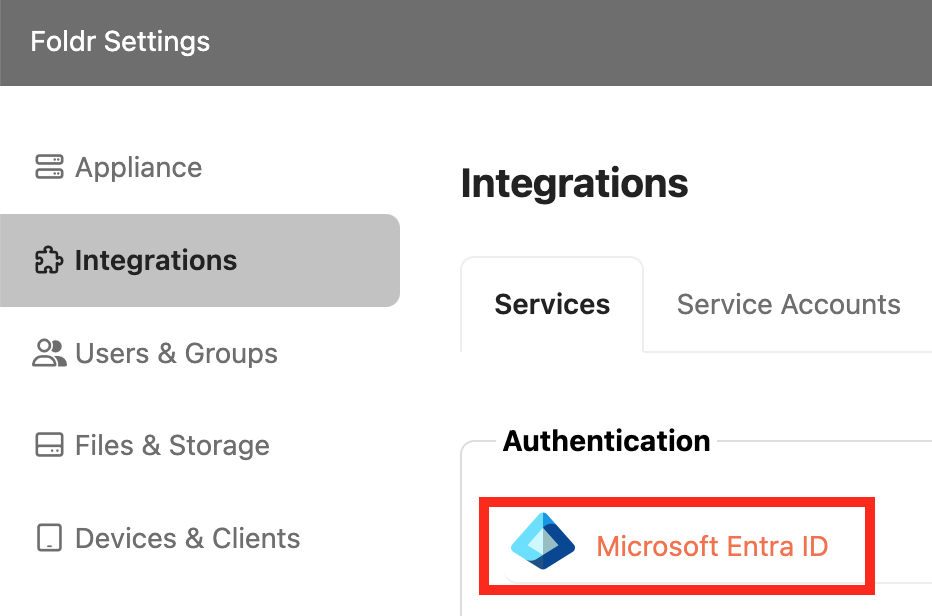
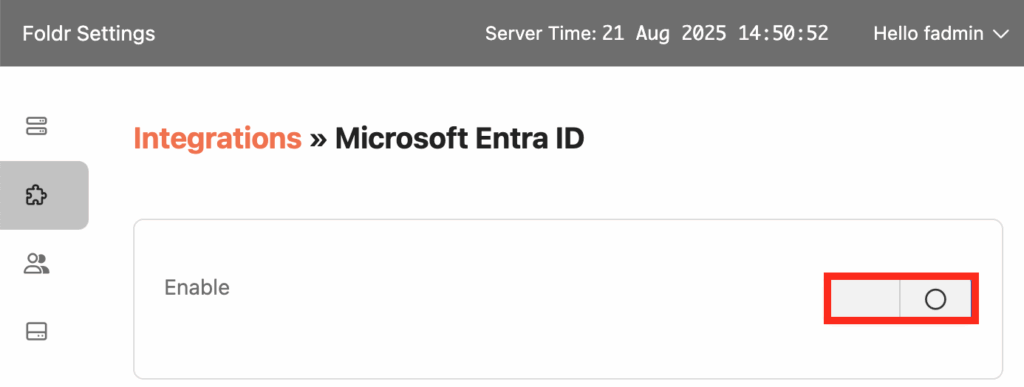
Open the Integrations tab in Foldr Settings and pick Microsoft Entra ID under Authentication.
-
Toggle the integration on.
-
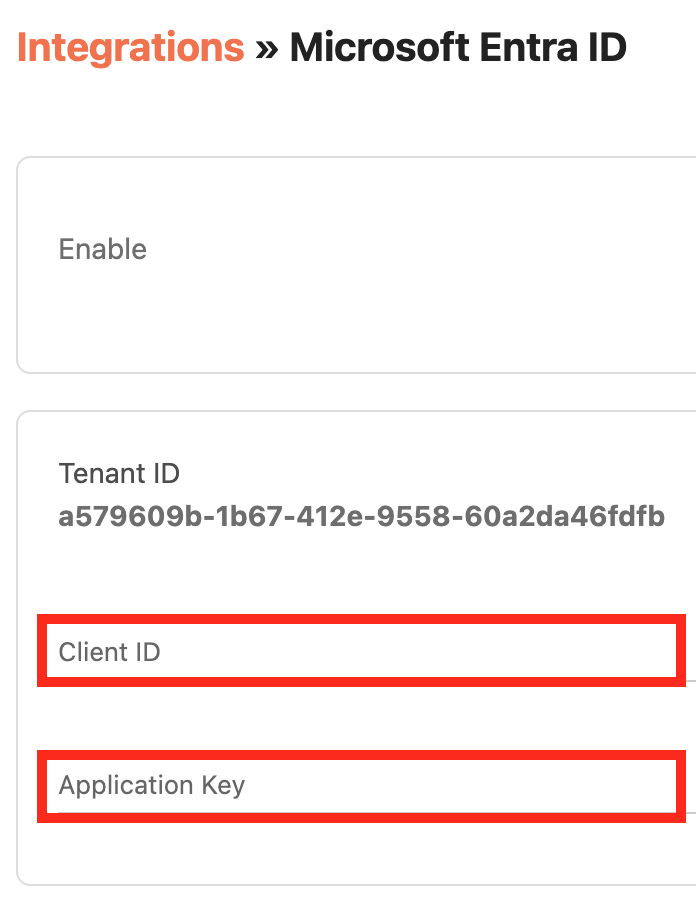
Paste the values from the Azure App Registration:
- Client ID = the Application (client) ID from Azure
- Application Key = the client secret VALUE from Azure
-
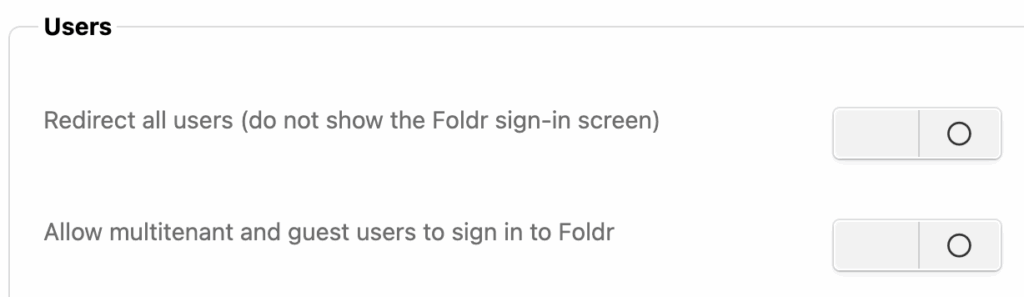
Optionally configure whether to redirect all users to Microsoft Online immediately, and whether users in other trusted tenants can sign in.
-
Click Save Changes.
Add Microsoft 365 storage to Foldr
With Entra ID authentication enabled, add the Microsoft 365 storage you want to surface to users.
-
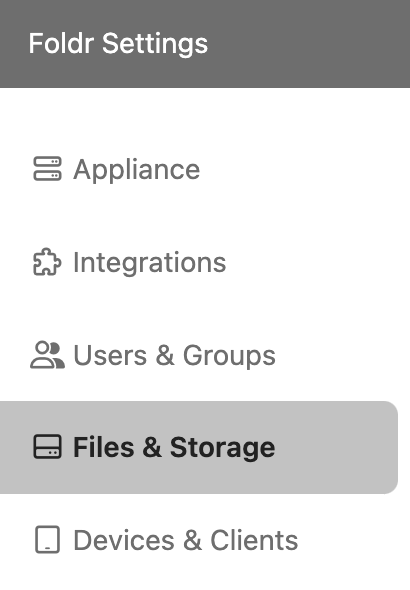
Open the Files & Storage tab in Foldr Settings.
-
Click + Add New on the Storage tab.
-
OneDrive. Give the storage item a name and use one of these built-in storage-address variables:
-
%onedrive%: all files and folders in the user’s OneDrive. -
%onedrivewithshared%: as above plus a “Shared with Me” subfolder containing items shared with the user in Microsoft 365.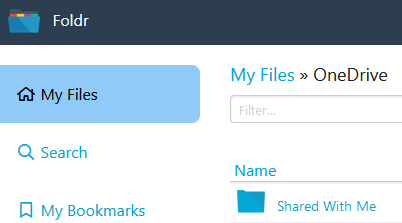
-
%onedriveshared%: only the shared items, no personal OneDrive content.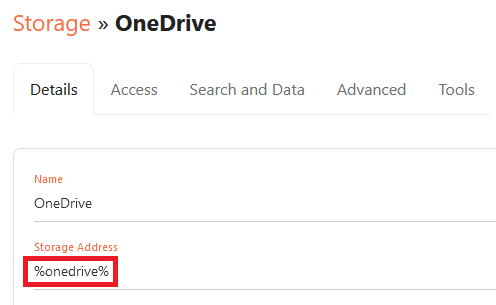
-
-
SharePoint sites. Add a storage item per site or document library, using the address
%sharepoint%(your-org.sharepoint.com/sites/site-name). Detailed walkthrough in Presenting SharePoint Online sites. -
Teams. Add a storage item with the address
%teams%.
Once configured, users sign into Foldr with their Microsoft 365 credentials (passing MFA if enabled) and see all the storage objects above as folders.
Enable Microsoft 365 search
Foldr can use Microsoft’s own search API to search OneDrive, SharePoint, and Teams without indexing the content separately. Cleaner than crawling, and respects 365 ACLs natively.
-
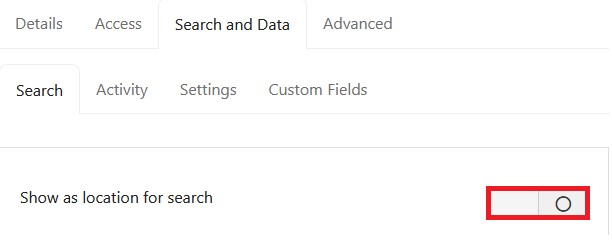
Open the storage item in Files & Storage and go to the Search and Data tab.
Toggle Show as location for search on.
-
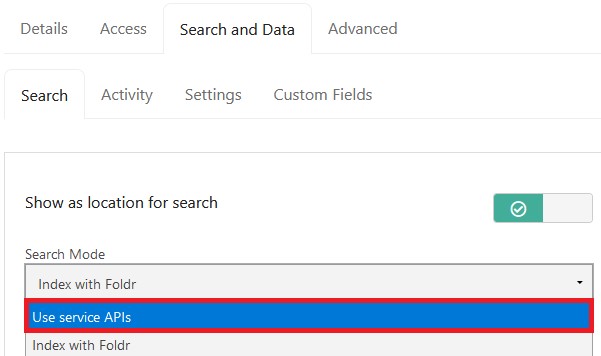
Set the search type to Use service APIs.
-
Click Save Changes.
Search is now available for that storage item across the web, desktop, and mobile apps.
Related articles
- Onedrive and SharePoint Online integration: the conventional (non-Entra-auth) integration paths for organisations that still have on-premise AD.
- Presenting SharePoint Online sites: per-site / per-library storage addresses.
- Foldr as a service provider with Entra SSO: SAML-based SSO from Entra ID, an alternative when full Entra ID authentication isn’t a fit.