
OneDrive & SharePoint Online integration
This article covers the self-hosted Foldr appliance workflow. If you’re on Foldr Cloud, see the Foldr Cloud version of this article — Foldr Cloud uses a Federated Identity Credential instead of a stored client secret.
Foldr integrates with Microsoft 365 so that OneDrive for Business, SharePoint Online sites, and Teams storage all appear inside the Foldr interface alongside on-premises shares and other cloud connectors. Once a user’s Microsoft 365 account is linked to Foldr they can also edit Office documents. On-premises or cloud-hosted. In Office Online directly from the web app.
There are two ways to link Active Directory accounts to Microsoft 365 accounts: automatic account linking (using a service account) and manual account linking (each user signs in once with their own credentials). Pick one for your deployment based on the trade-off below.
Automatic vs manual: which to use
The choice affects how Foldr authenticates against Microsoft 365. And crucially, whether SharePoint and Teams permissions set inside Microsoft 365 are respected per-user or replaced by a service account’s permissions.
Automatic (service-account) linking uses an admin-configured service account to access OneDrive and SharePoint on behalf of every user. As soon as the user signs in to Foldr, their Microsoft 365 storage is available. No per-user prompt. The trade-off: because Microsoft Graph does not currently allow true per-user impersonation through service accounts, all users share the service account’s view of SharePoint. If your SharePoint sites have granular, per-user permissions, those will not be enforced through Foldr under this mode.
Manual linking prompts each user to sign in to Microsoft 365 once, the first time they open a OneDrive, SharePoint or Teams location in Foldr. Foldr then uses tokens scoped to that user, and per-user SharePoint and Teams permissions are respected exactly as they are in the Microsoft 365 portal. Tokens expire after 90 days of inactivity; if that happens, the user re-links from the same prompt or from Me > Services in the web app.
Practical guidance:
- Presenting OneDrive only, with no granular SharePoint permissions in play → automatic is simpler.
- Presenting SharePoint sites or Teams storage with per-user permissions → manual is the right choice.
Manual linking also gives the %teams% / %teamsedu% storage adapter its expected behaviour: Foldr presents only the Teams the user actually has access to. Under automatic linking, those adapters surface every Team to every user, which is rarely what you want.
Regardless of method, the administrator still controls which top-level storage items appear in Foldr (OneDrive, SharePoint sites, Teams) using the per-share permissions in Foldr Settings > Files & Storage.
Azure app registration
The Azure-side setup is the same for both linking modes up until the API permissions step.
-
Sign in to the Microsoft Azure portal with an administrative Microsoft account.
-
Open Azure Active Directory (Entra ID) from the left-hand panel.
-
Go to App registrations > New registration.
-
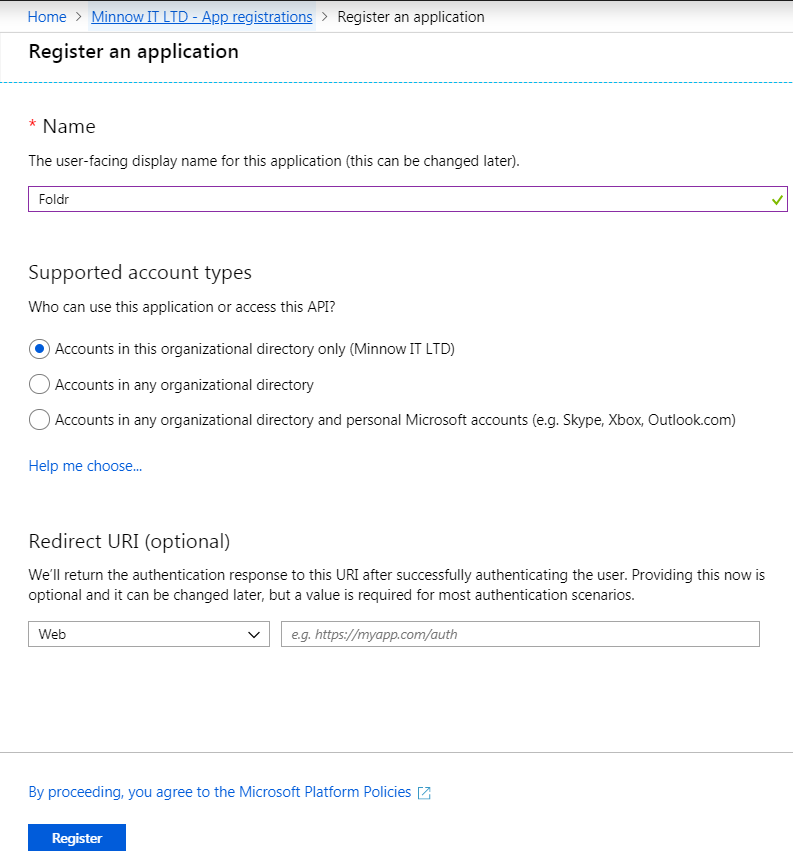
Name the application and click Register. The default supported-account-type setting is correct in most deployments.
-
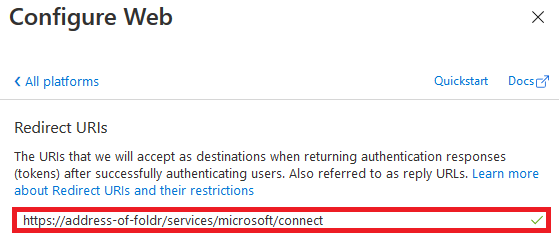
Manual linking only: open the app’s Authentication page, click + Add a platform, choose Web, and add a Redirect URI in the form:
https://<address-of-foldr>/services/microsoft/connectClick Configure.
-
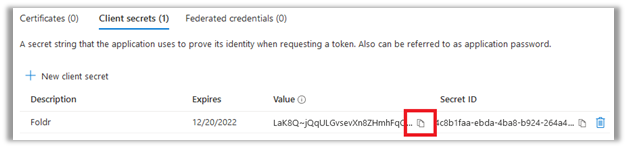
Open Certificates & secrets and click New client secret. Enter a description, choose a long expiration lifetime (when the secret expires, the integration stops working until renewed), and click Add. Copy the secret Value immediately. Azure will not show it again. New secrets can be issued later if lost.
-
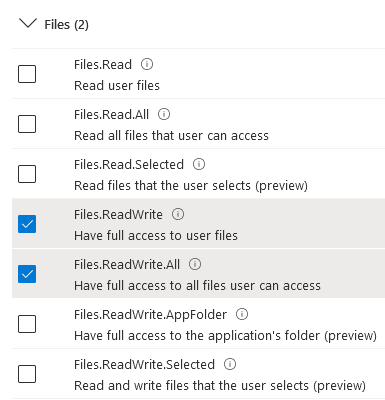
Open API permissions > Add a permission > Microsoft Graph, then add the permissions appropriate to your linking mode.
Permissions: automatic linking
Choose Application permissions and add:
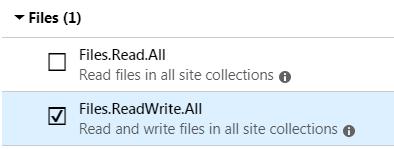
Files.ReadWrite.AllDirectory.Read.All(only required if presenting Teams or SharePoint)Group.Read.All(only required if presenting Teams or SharePoint)
Permissions: manual linking
Choose Delegated permissions and add:
Sign-in basics (usually pre-selected by Azure):
openidprofileemailoffline_accessUser.Read
Directory + file operations:
Directory.Read.AllFiles.ReadWrite.AllSites.ReadWrite.AllSites.Manage.All(needed for SharePoint document libraries with content approval enabled — without it, items in Pending or Rejected moderation status silently fail to appear in Foldr)
Teams (only required if you’ll be presenting %teams% or %teamsedu% shares):
Channel.Create— allows users to create Teams channels by creating a folder at the root of a TeamChannelSettings.ReadWrite.All— required for channel rename support from the desktop apps
Grant admin consent
After adding permissions, click Grant admin consent at the bottom of the API permissions screen and confirm.

Then open Overview and copy the Application (client) ID and Directory (tenant) ID. Both are needed in Foldr.
Foldr-side configuration
Automatic linking
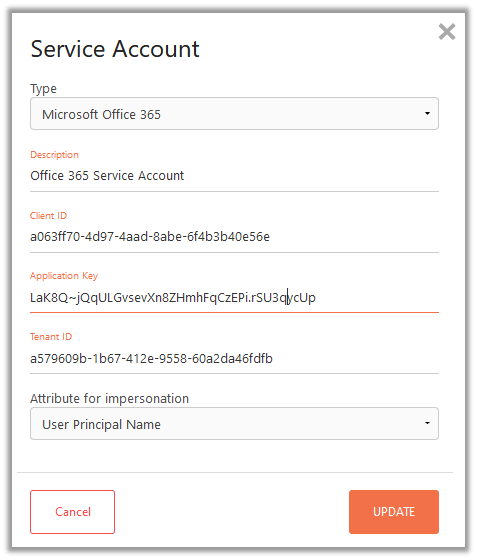
Create a Microsoft service account in Foldr Settings > Integrations > Service Accounts:
- Client ID. Application (client) ID from Azure
- Application Key. The Client secret from Azure
- Tenant ID. Directory (tenant) ID from Azure
- Attribute for impersonation. Typically the user’s UPN or email address; the value here is matched against the corresponding Microsoft 365 account. If neither default matches your environment, use the Custom option, e.g.
%username%@example.com.
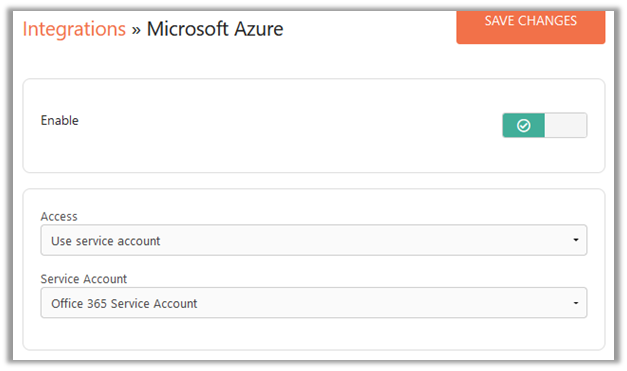
Then in Foldr Settings > Integrations > Microsoft Azure, switch on OneDrive integration and select the service account you just created. You don’t need to fill in Application ID or Key in this section when using automatic linking.
Manual linking
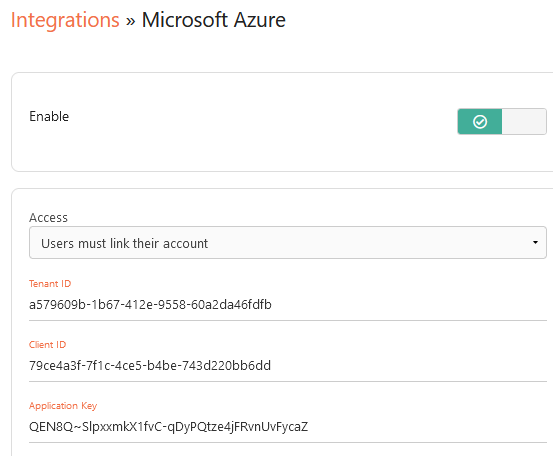
Go to Foldr Settings > Integrations > Microsoft Azure and copy the values from Azure into the corresponding fields:
- Client ID. Application (client) ID
- Application Key. Client secret
- Tenant ID. Directory (tenant) ID
Click Save Changes. No service account is required.
Adding the storage shares
The same share types work under both linking modes; the only difference is whether you select the Microsoft service account on each share’s Access tab (automatic) or leave Access unconfigured (manual).
| Share type | Storage address |
|---|---|
| OneDrive | %onedrive% |
| OneDrive with “Shared with Me” | %onedrivewithshared% (adds a Shared with Me folder to the root of the user’s OneDrive) |
| OneDrive shared items only | %onedriveshared% (a dedicated share showing items shared with the user) |
| SharePoint Online. Root site | %sharepoint% |
| SharePoint Online. Specific site | %sharepoint%(tenant.sharepoint.com/sites/site-name) |
| Teams | %teams% (or %teamsedu% for education tenants. Adds the Class Materials library to each Teams channel) |
The %teams% and %teamsedu% adapters are intended to be used with manual linking only; under automatic linking they surface every Team in the tenant to every user.
For more detailed SharePoint storage configurations (subsites, specific document libraries, listing all libraries in a site) see Presenting SharePoint Online sites.
User experience: linking under manual mode
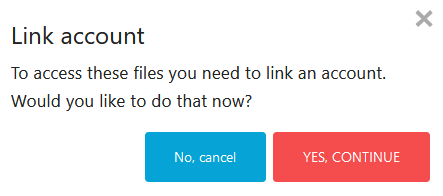
When a user accesses any Microsoft 365 storage location in Foldr for the first time, they’re prompted to link their account. Clicking Link account opens a new tab to Microsoft Online; once they sign in, the link is established and the location becomes browsable.
Users can also manage the link from Me > Services in the web app. They can unlink and relink at any time, which is also where they re-link if their token has expired after 90 days of inactivity.
Once linked in any Foldr app, the link is shared across all of them. Web, desktop, and mobile.
Document editing in Office Online
After the integration is in place, users can edit any Office document Foldr can preview. On-premises SMB shares included. Using the Office Online web apps.
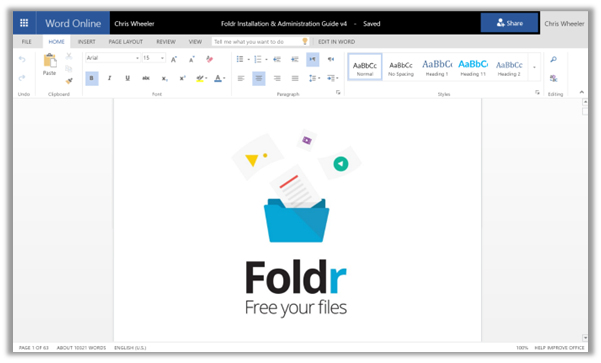
Open the document in the Foldr web app and click Edit with Office Online. A new browser tab opens the appropriate Office web app. If the document is hosted in OneDrive or SharePoint, the user is editing natively, and changes save automatically. If the document is hosted somewhere else (e.g. an SMB share), Foldr round-trips the file through Microsoft 365 and prompts to save changes back to the original location when the tab is closed.
Troubleshooting: HTTPS / SSL inspection
If your firewall or web filter performs HTTPS / SSL man-in-the-middle inspection, exclude the following domains. Inspecting them breaks the integration:
graph.microsoft.comapi.office.comlogin.microsoftonline.com<tenant>-my.sharepoint.com(e.g.company-my.sharepoint.com)
Related articles
- Microsoft Entra ID authentication — sign users in directly with Entra ID instead of AD. Microsoft 365 storage is unlocked automatically by the sign-in token; no per-user linking required.
- Presenting SharePoint Online sites — storage-address recipes for individual sites, subsites and document libraries.
- Foldr for Microsoft Teams — file picker integration — surface Foldr inside Teams as an alternative file picker.