
Presenting SharePoint Online sites
Once Microsoft 365 is connected to Foldr — via the OneDrive & SharePoint Online integration on Foldr Cloud, its self-hosted appliance equivalent, or native Microsoft Entra ID authentication on an appliance — you can present individual SharePoint Online sites by adding shares in Foldr Settings → Files & Storage.
This article covers the storage-address recipes for each layout. If you’re using automatic account linking, remember to select the Microsoft service account on each share’s Access tab. Under manual linking and native Entra ID auth this isn’t required.
Finding your tenant address
The recipes below use the tenant address (e.g. tenant.sharepoint.com). To find yours, sign into portal.office.com, open SharePoint from the dashboard, and read the host part of the browser URL.
Recipes
A specific site, default Document Library
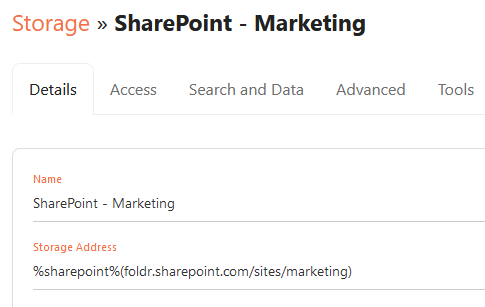
Use the tenant address followed by the site name in parentheses. To present the default Documents folder of a site called Marketing:
%sharepoint%(tenant.sharepoint.com/sites/marketing)If the SharePoint URL doesn’t include /sites/ when viewed in the Microsoft 365 portal, drop it from the storage address as well.
All Document Libraries in a site
Append :drives to list every Document Library inside the site:
%sharepoint%(tenant.sharepoint.com/sites/marketing):drives
A specific Document Library inside a site
Put the library name outside the closing parenthesis. To target the default Shared Documents library:
%sharepoint%(tenant.sharepoint.com/sites/marketing)Shared Documents
Subsites and Document Libraries together
Append :drives,sites to show both subsites and Document Libraries:
%sharepoint%(tenant.sharepoint.com/sites/marketing):drives,sites
The organisation’s root SharePoint site
Use %sharepoint% on its own. The URL of the root site is discovered automatically through the Microsoft API.
%sharepoint%Reminders
- Automatic linking. Set the Microsoft service account on each SharePoint share’s Access tab.
- Manual linking or native Entra ID authentication. Leave Access unconfigured; the user’s own credentials are used.
- Per-user SharePoint permissions are only honoured under manual linking and native Entra ID auth. See the comparison in the main integration article.